Archive for the ‘Product Reviews’ Category

New TEDTalks iPad app is good – here’s how to make it great

Thursday, October 14th, 2010

I was thrilled to discover the new TEDTalks app for my iPad this morning, and quickly installed and liked much of the experience.  There they are, over 700 amazing Talks to listen to.  This is particularly sweet for me as I watch a TEDTalk on my iPad virtually every morning whilst on the bus to the office, currently obtained through the suboptimal process of subscribing to the podcast in iTunes, and syncing to the iPad.  And if I may slide for a moment here, I can’t believe in 2010 there’s still anything that has to “sync” via a wire.  But I digress, back to TED.

In just a few minutes of use I quickly realized the app was content-rich, but not feature-rich.  While the “Inspire Me” feature is extremely well done (it’s all about length of video – this is a key realization most entertainment/content people need to clue in on), I felt it was otherwise a little flat. In fact, it’s not going to be very useful for my personal needs, and I’m concerned that’ll be true for others as well.  So in my support of TED, and by the way – I genuinely believe that if all people watched TED Talks the world would actually be a better place – I thought I’d quickly jot out the notes to make it better for users such as myself.

  1. Add search
    The browse works great, but there’s no search.  So when I see a tweet from a friend about a given TED Talk, I can’t find it without browsing for it.  And, to boot, I need to know the category/tag that applies to the talk to find it.  While we’re at it, make search by keyword and author too.
  2. Add alphabetical browsing
    Per above, at present you need to know how the Talk is categorized to find it.  Personally, I’d like to find something just by browsing a list of titles.
  3. Add sharing features
    At the end of virtually every TEDTalk, I want to share it with someone, whether a peer, my team, a friend or family member, or the entire world on Twitter.  Add simple “tweet this” and “like this” and “email a link to this” TEDTalk to every clip.  Also, the link should probably share the YouTube or TED.com version of the clip.
  4. Add a history/watched list
    Once I’ve watched a few dozen videos, I find it hard to remember if I’ve seen one, or hard to remember the exact title of one if I want to reshare it.  A simple history feature is essential.  And in the would-be-nice category?  Show me “You Watched this on MMDDYY” on the video preview page if I come back to it.  Also, add a “mark viewed” feature along the way, in case I’ve watched the Talk on another platform.
  5. Incorporate social features
    Since everyone’s busy “liking” everything else via Facebook these days, would be great to see in a video profile page that friends of mine have liked something.
  6. Add download controls
    Once I begin a download, there appears no way to delete the download, queue for later, or otherwise manage whats going on.
  7. Add more “cool views”
    Timelines. Maps. Duration.  etc.
  8. Integrate with other platforms
    There’s the TED site, YouTube, the iPad app, a forthcoming iPhone app, a Boxee app, the iTunes podcast, and I’m sure more to come.  Assume I am using more than one method to consume the content, then allow me to integrate from one to the other.  In other words, let me favorite something on your site, then see that on my iPad app.

I think the “1.0″ version of the app is probably pretty decent for most people.  If you have even a few free minutes and an Internet connection and want to get inspired, this app will certainly do the trick.  Hopefully these ideas can help inspire team TED to take it just a bit further!

Rooting for Roku

Thursday, September 23rd, 2010

Hello,

I’m a longtime fan of LiveDigitally but a first time contributor. Jeremy has been kind enough to invite me to write for the blog whenever the mood strikes and today seemed like the perfect day for my inaugural post.

Picking up on previous posts on what makes a great Google TV or Boxee app, I thought I’d jump in with some thoughts of my own on one of my favorite devices, the Roku box.

I got my Roku about four months ago and I love it, I really do. It gives me about 75% of the content I would want on my TV, which was enough to get me to “cut the cord” and cancel my cable subscription. So for the past few months, Roku has been my rocket ship to the TV universe.

I haven’t seen Roku’s latest offerings, but here are some thoughts on what I have seen and heard about their current boxes:

  1. Roku wins universal praise for its ease and setup, but not so much fanfare for its UI; I can’t disagree. The box is dead-simple to set-up and use, which is great. But the UI is uninspired and doesn’t really encourage you to really delve in to what is on offer
  2. Another piece of high praise is reliability, my box hardly ever flakes and we put it through the ringer. It is hard-wired into my router so I can’t vouch for the wifi capability, which appears to be improved in the new boxes launched today
  3. Content: At the outset, Roku was essentially a Netflix box. That was great a year-or-so ago but now, everyone and their brother is a Netflix box. Roku has some nifty content like MLB, Pandora, Amazon and a few others, but they need to continue to expand with more mainstream stuff.  Apple has Netflix and just scored ABC and FOX. It isn’t a huge leap forward, but it may be enough to peel off Roku users.
  4. Developer community: Related to the content problem, I know from some developer friends that Roku isn’t the easiest platform to develop on. Obviously this is a problem as competitors, both large and small have strong developer communities. Difficult development platform=difficult to get the choice apps/content.

Some of the pet peeves that are missing from my current box have been addressed by the new ones, the biggest being previously a lack of USB. With my current XR, I don’t have USB to view my own content, which is frustrating. Happily, that has been solved with the XDS

But even as it evolves, Roku is firmly staking ground in the low-end market, which I think is a good move.

The big battle around media-streaming boxes will be around price/performance; Google TV seems to be on the highest end, with estimates that their box will be in the $200-$300 range, Boxee is next at under $200, with Apple TV and Roku coming in at the sub $100 range.

GoogleTV and Boxee promise a more active experience, with more features, web surfing  etc., but also with a more complicated remote/UI. AppleTV and Roku look to be more of lean-back experience of just watching content via a simple remote/UI.

My money is on the lean-back experience, which I think is more viable for the short term. A simple box that lets people access most of the content they want will be the gateway drug to media-streaming boxes. Boxee and Google TV look/sound great on paper, but I wonder if they may be too complex too early in the lifecycle of this product segment.

Two Weeks Later: Why I’m Keeping my iPad

Monday, April 19th, 2010

I purchased an iPad on day one (roughly minute 3), without much assurance as to how or why I’d use it, or even if it would be a “keeper” in my digital lifestyle.  Here’s a recap of my feelings over the past two weeks:

Day one.
Let’s be honest, the first day of any new toy is either “wow this is awesome” or “gosh I’m disappointed”.  Most products don’t get well-tested in their first few hours of use, and it’s generally hard to evaluate the real-world practicality of any device.  For example, a digital camera will take good pictures, but you might not try it in a fast-action setting; similarly a GPS device will get you to your first destination, but you won’t evaluate how rapidly it finds the signal when you are lost up in Tahoe.  My day one was a lot of fun.  I didn’t really “do anything” with the iPad, other than try downloading stuff, typing on the keyboard, doodling in one of the (way too many) doodle apps.  Good times.

Week one.
Within three days I had sync’ed my email, contacts, and calendar to the device, and all worked quite smoothly.  I copied some photos, videos of the kids, some Arrested Development episodes, and some music from my library.  I also experienced my first real “use” of iTunes as a sync platform – it’s okay, but has some bizarre shortcomings that I was quite surprised about.  I downloaded a few apps (all free ones, didn’t want to buy anything yet and still haven’t bought one yet to this day actually),  played with them, kept some, deleted others.

Most of my time in week one was spent using the device in three settings (well, kinda four – read below)

  1. On the bus
    Media device: Watched videos, wrote a blog post, listened to podcasts
  2. At the office
    “Accessory” computer to my iMac:  Mostly light email, calendaring, some Harbor Master.
  3. At home
    Laptop replacement: light-to-moderate email, Web surfing, lots more Harbor Master.
  4. Demo to others
    My fourth scenario was simply showing the iPad to anyone around – lots of inquisitive folks wanting to see it in use. I wish I was getting a commission.

Week two.
The second week of use was my true “now how do I feel” week with the iPad.  Was it actually better/easier/more convenient than my MacBook?  Did I really want to carry this on the bus or other places? Would a murse fit into my lifestyle okay (separate post of iPad cases & sleeves coming)?

The above answers were all “yes”es, and more.  The only three uses of my MacBook last week were: watch NHL GameCenter (Go Habs!), sync and backup digital pictures, and charge/sync content to my iPad.  For literally everything else I used my iPad in lieu of the MacBook.  And not only did I use it, I found myself preferring it for most casual use.  But then this weekend got even more interesting.

On two different occasions this weekend (at a movie theater and while touring farms North of San Francisco) we had the iPad handy to look up long lists of content.  To be perfectly clear, we opted to carry an iPad rather than print out Web pages.  This was a conscious choice, and not in any way for “show off” factor (don’t worry – that was accomplished through plenty of other methods).  It was just an easy way to bring content along with us AND have our calendars AND have email history AND have contacts/address book information.  Things we obviously could do with smartphones (but generally choose not to), paper (ugh), or laptops.  But I’d *never* throw my laptop in the trunk on a day trip – something that just felt natural with the iPad.

It ain’t all kool-aid!
There are certainly flaws with the iPad.  In fact, my evernote-based list of likes/dislikes actually has more entries on the dislike list (future blog post).  It is, unquestionably, about the least ergonomic device I’ve used (the lap-pad pics from their ads are great, but radically unrealistic).   The lack of even simple multi-tasking (mail + calendar anyone?) can be annoying.  They could even take a cue out of Android and include a “back” button that spans multiple apps.  More on this in a future post.  But most importantly…

It’s not a replacement for any computer.  Just some.
As much as I believe the iPad has major impact in regards to light/casual/home computing, I don’t think most households could get by with “only” an iPad.  The lack of ability to effectively handle one’s digital camera needs is a “killer feature” for having a computer.  Further, no businessman could possibly exist on the iPad alone, though it’s an amazing complement to one.  I will say that I believe mail on the iPad vastly outshines any other non-computer device, specifically including BlackBerries, and that’s an important piece of ground for Apple to break.

But it is game-changing, and almost definitely not a bread machine.
I like having the iPad around.  I like turning it on, using it, then knowing it’s still there. It feels like everything the original PalmPilot put into my hands (though unfortunately not my pockets), only in context of computing and the Internet in 2010. I believe my use will only increase, and intend to start purchasing apps now.  It’s probably the most interesting digital accessory one can purchase, and unquestionably dabbles in “computer turf”.  I thoroughly enjoy using it, and find that it is helpful (not harmful) to overall productivity.  Except, of course, when I play Harbor Master.

LG W53 “smart monitor” review (and a giveaway)

Wednesday, December 23rd, 2009

I’ve spent a few weeks months playing with the 23″ LG W53 “SMART monitor”, and in a nutshell, it’s a darn fine unit (full unit acquisition disclosure at the bottom of the review).  When I first got it I had already been using a cheapo generic 23″ as an extension for my MacBook, so I really had a good way to do a side-by-side comparison.  I found the colors more vivid on the LG, the UI for controlling the monitor was more pleasant to use, and it simply looked a lot nicer on my desk.

As a disclaimer, I am by no means an expert at picture quality – with regards to how it appeared, this is purely a layman’s perspective.  My generic display had a bit of a dull-looking finish to colors, whereas bright colors on the LG seemed much more vivid.  I did try to set the default settings to appear similar (contrast, tint, etc), and watched a variety of content from movie trailers to simple desktop apps. There was also a “Cinema Mode” which looked good as well. The LG won hands-down, but in order to not sound all gushy about it, it wasn’t exactly a VCR-to-HDTV kind of difference in picture.  But if I had to choose, I’d choose the LG.

In contrast to picture quality, I actually do know a thing or two about user interface design (maybe even three), and considering how terrible most TV/monitor menuing systems are, the LG sports a nice touch.  Buttons & on-screen controls line up well and make sense.  Also, they have a little motion sensor so as your hand approaches the buttons, they light up – this might sound frivolous, but for those of us who like to keep as few extra lights on/visible as possible, it’s definitely a plus.

Lastly, the unit’s finish was much better than most of the other monitors I’ve seen at similar price points. While I’m not personally a huge fit-and-finish person, I do appreciate it looking a tad more professional on my desk.  This probably wouldn’t sell me on the unit either way, but if you are narrowing down amongst multiple options, having something look nice sure doesn’t hurt.  I actually ended up purchasing a 37″ LCD from LG for my home in large part due to the “high end feel” of their displays.  In summary, if you need a new/additional monitor, don’t want to break the bank, and want something that looks and feels good, I’d take a peek at the LG (on Amazon for ~$230).

Disclosure

I did not purchase the 23″ monitor, it was sent to me by LG, and I am permitted to keep it.  There were no stipulations, payments, or other parameters on the unit.

Now for the giveaway!

In addition to the unit for my desk, the gang at LG gave me one to give to the readers.  I’ve decided to use this as an opportunity to learn a bit more about who reads the blog.  If you are interested in winning the free monitor, just fill out my little survey between now and 12/31/09.  I’ll pick a winner randomly (note: you must live in the USA to win).

Note: the contest is over, the winner has been picked.  Thanks for your participation!

Chrome Messenger Bags – Are they just a pretty face?

Friday, February 20th, 2009

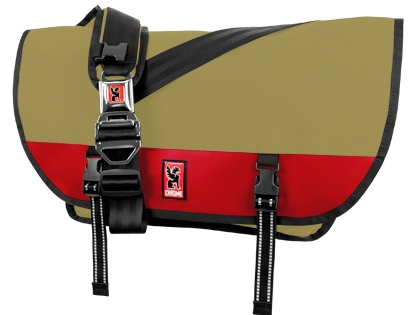
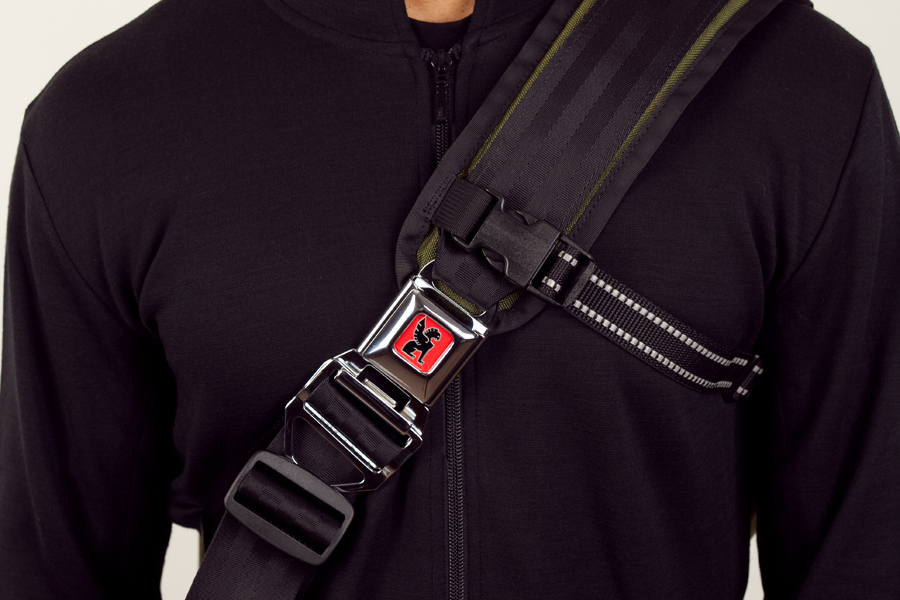
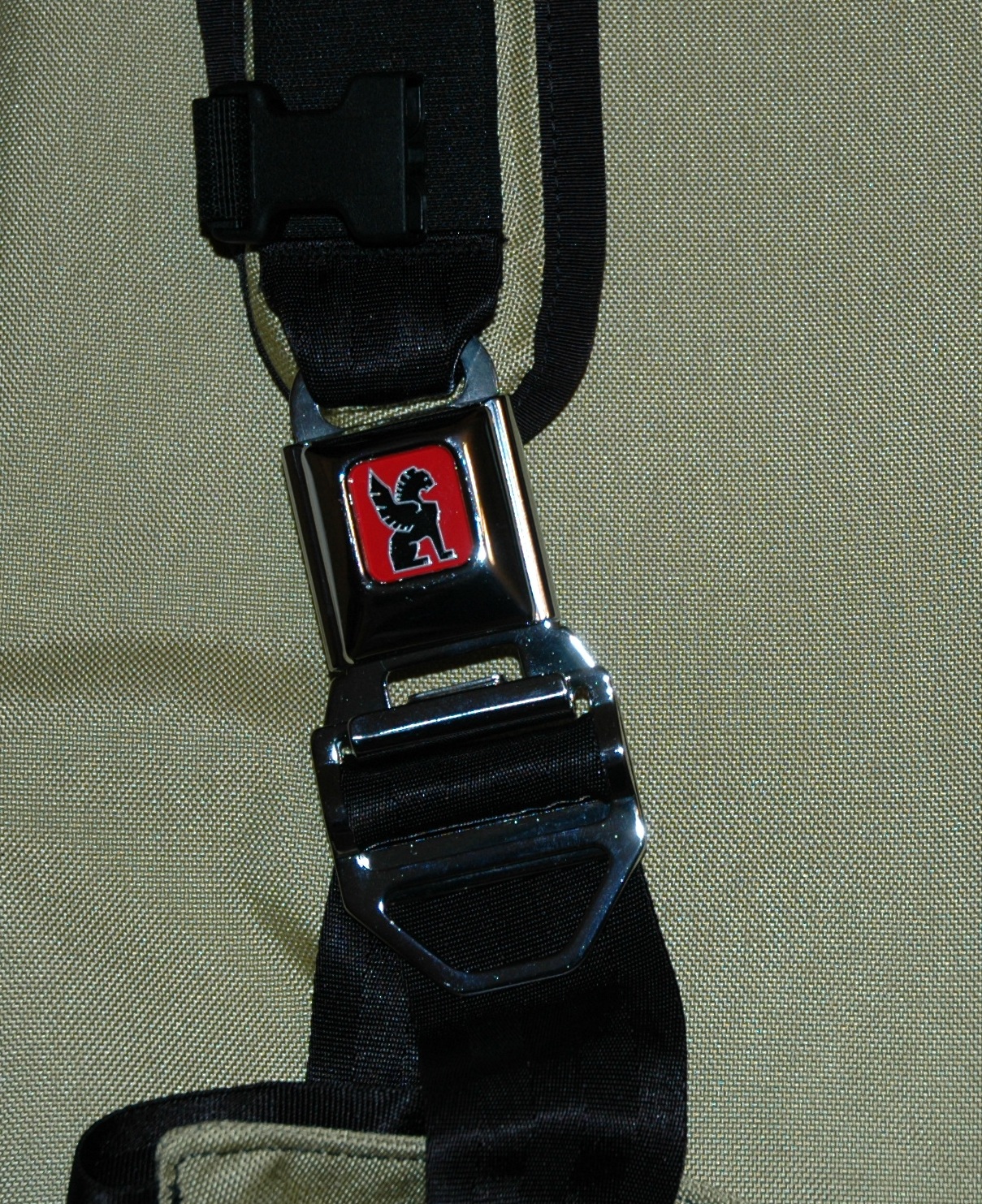
Chrome bags look bitchin’. The question is, do they function as well as they look?  I mean, the logo is rad, the seat-belt style buckle is unbelievably cool, and the color choices kick almost everyone elses behinds.  (Timbuk2 bags also offers cool color varietals, but they just seem so darn preppy.)  Nah, in terms of cool factor, Chrome bags definitely carry the day.  But I’m probably getting ahead of myself. Let me backtrack.

This review is about messenger bags, bike messenger bags, and specifically those made by Chrome. While we generally stick to gadgets here at LD, we have reviewed laptop bags in the past.  I got my grubby mitts on a Citizen Bike Messenger bag from Chrome Industries, based in foggy San Francisco, CA. Typically a messenger bag is a single shoulder bag that opens horizontally, has one main strap, a large primary compartment, some level of secondary organizational compartments, and then a myriad of different possible accessories.  These might include some degree of padding, a laptop compartment, stabilizer straps, a removable primary strap, a grab handle, etc. etc. ad nauseum.  (I like bags.)

Working daily in San Francisco, I keep seeing Chrome gear all over the place.  Mostly they’re carried by dirt-baggy, scruffy faced ruffians who nimbly dodge through traffic and congregate during lunch on Market and Montgomery (read: bike messengers.)  The other primary class of people carrying these bags are poseurs.  I mean, serious wannabes who think the logo is cool and want to seem hip with their designer, hip-hugger jeans, their button down shirts with swirly embroidery, their stupid looking goatee with pencil-thin sideburns on their jawline and their aviator sunglasses… yeah, you know who I mean.  I don’t want to be that guy.  And I’m not sure I can pull off the Citizen, especially off my bike (you know, just walking around.)

Now, to be clear, I am looking at messenger bags from a particular perspective.  I do use it on my bike, I commute from San Mateo to San Francisco using my bicycle and the Caltrain.  My typical time on the bike varies between 45 minutes to 1 hour and 45 minutes per day, depending on which route I choose.  So I am doing a fair amount of biking with the bag.  But I am not a bike messenger.  This means a couple things.  I am not on my bike 8 hours a day.  And I specifically need to carry a few key items, not all kinds of random crap for delivery across the city.  I am commuting to work, not routing back and forth across a concrete jungle.  I need to carry:

  • laptop
  • power charger
  • sunglasses
  • a book
  • a layer
  • a snack
  • an iphone charging cord
  • gum
I’m on the train for part of my commute, so I frequently need to yank out my computer, or get to my book to catch up on some leisure reading.  I want the bag to be comfortable, even when heavily weighted.  I want it to be weather proof, I get caught by rain frequently, especially in the Winter time. I’d like some organization options, multiple pockets and compartments.  Ideally I’d like a padded laptop sleeve, so that I can pop out the computer without having to scrabble past all the other junk in my bag.  And I want it to look dope.  Yeah, I’m vain.  I deal with it, and so should you.

Before I ever picked one up, I went to the streets and asked some regular folks sporting Chrome what they thought.  One person complained that though he was really excited at first, he didn’t like the fact that it was just a big sack.  One big hole to drop stuff into, with little or no organizational options.  This is one of my concerns too.  On the one hand, I like simplicity.  The Citizen is straightforward – it’s a bag, it holds stuff.  There are a few pockets.  One zippered, one non-zippered, and a couple of pen / pencil sleeves.
This is sufficient for most of the small items, and offers a decent level of organization.   My biggest gripe, organizationally speaking, is really the lack of a laptop sleeve and the lack of padding.  It would be great to be able to pull out the laptop and leave the rest of my gear undisturbed.  As it is, I use a neoprene sleeve that I bought aftermarket in order to put some padding around my way-too-expensive mac.  This works fine, but the sleeve would be a nice built-in feature.

It’s important to note here that the Citizen is not intended to be, and was not designed to be a laptop bag. It’s a messenger bag, for carrying stuff around on a bike.  I am choosing to use a messenger bag as a laptop bag.  If I use a screwdriver to drive a nail, I might succeed in pounding the sucker in, but I also might get some bent nails.  That being said, more and more people are bike commuting all the time – lord knows it’s hard to get a seat on the Caltrain for the 8:15AM train.  So I think I’m not the only person who’d benefit from a couple of design alterations.  And Chrome, btw, does offer some laptop-oriented bags.  But none of them are quite like the classic “messenger-style” bags, and none of their messenger bags really hit the mark for the computer commuter.

Another oddity to me is the stabilizer strap.  It seems to me like it ought to run opposite of the primary strap.  In other words, if I wear the bag on my left shoulder, then the stabilizer strap should logically come up my right side, no?  Well, Chrome disagrees, and their stabilizer runs along the same side as the primary strap, and runs under armpit (see left.)  I found this to be pretty ineffective – the bag rolls on me just as much with this as without it.
There are a couple of things I would change about this bag, to make it the perfect bag for me.  Let me reiterate – these are not necessarily shortcomings in the bag itself (at least not all of them); rather, these are things that would improve the bag for my purposes:
  • Padded laptop sleeve (I’ve covered this)
  • Waterproof zipper with storm-sleeve to access the laptop sleeve – it would be awesome to be able to yank out the laptop without needing to unbuckle two clips and rip apart massive velcro.
  • Better stabilizer strap – I think it ought to come from the other side of the bag

The lack of a zipper will stop me from using this bag when I travel.  It’s just too difficult to pull things out of the bag when it’s stuffed under the seat in front of me when I’m riding coach in an airplane.  All that velcro, ugh. But I can also understand not wanting to compromise the waterproof integrity of the bag.  And for riding into work everyday, I am willing to put up with the shortcomings because there a lot of things I really like.  I’ll tell you what I think makes this bag a big winner:

  • The buckle – it’s darn near iconic in San Francisco, and it’s just like a seatbelt in a car.  That’s rad.
  • The materials – ballistic nylon and truck tarpaulin are badass, durable and waterproof
  • The anatomical, padded shoulder strap – even heavily loaded this is a comfortable bag to ride with, even without any padding to speak of
  • Shoulder strap again, specifically, the way it holds the bag upright – with a lot of other messenger bags I’ve used (including an Osprey and a Jandd bag) there is a constant tendency for the bag to swing sideways.  The shoulder strap on the Chrome messengers actually hold the bag more or less vertically, and the shape itself (with a little help from gravity) actually hold it in place.  It was this design element that first caught my eye.
  • The one-handed tightener and loosener on the chest strap

The Citizen from Chrome is an outstanding messenger bag with an unusual and innovative design, outstanding materials, the sweetest logo on the market, a wickedly cool (unbreakable?) buckle, and awesome color options.  There are some things it does really well, and others that could stand improvement.  But on the whole I think the bag will serve well enough for my biking commuter-geek purposes, and it’s clearly outstanding for the purpose for which it was originally intended – to be a bike messenger bag that will last for years of hard abuse.  When I’m riding my bike, I’m stoked to have this bag cause it’s comfortable, functional, and cool-looking.  When I’m not on my bike and I carry this bag, I feel like a poseur, a big lame-o that’s trying too hard to look cool.

If I were forced to give this bag a numeric rating between 1 and 10, I’d have to split things up a bit.  For the purposes of a computer-commuter bag, I’d give it a 7.  As a travel bag it’s a 5.  And as a bike messenger bag this one is a 10.  If I change career paths and start delivering packages via bicycle, I won’t carry anything else.  (I’d be laughed at, scoffed and mocked by the other guys if I did anyway.)

This review is also available at 1TO10REVIEWS.

eStarling is Startlingly Cool

Tuesday, January 6th, 2009

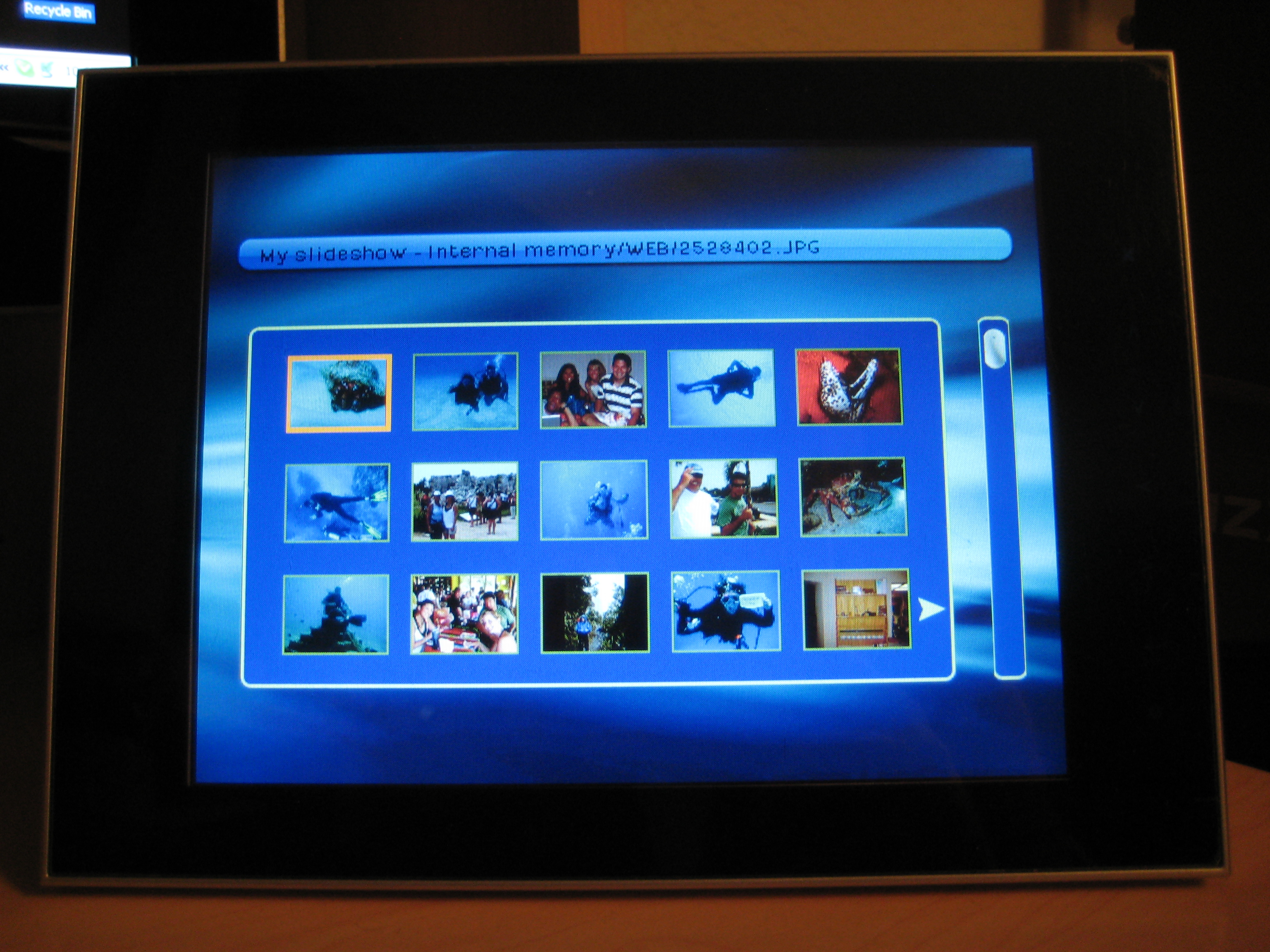
eStarling makes several WiFi connected digital photo frames, and I’ve been playing with their Impact V for a bit.  I’m impressed.

From the moment you open the box, eStarling does a pretty good job holding your hand and making use of the frame pretty simple.  You have all the usual options for displaying pictures that past digital frames have lead us to expect, including memory card slots that accommodate a couple different card types (SD, MS, MMC.)  But what’s way more interesting to me is the wireless and social mechanisms for displaying pictures.

When you pull the device out of the box, a greeting card immediately invites you to plug in the frame and connect it to your wifi connection (beware: this frame is much cooler if you have a wifi network.)  Once you’re connected, the frame prompts you to visit their website and activate your account.  Once you do you will get an email address dedicated to your frame, and you (or your friends and family) can email pictures to your frame.  You can also log into your account on their website to upload pictures from your computer to your eStarling account – these will then appear on your frame (it took my pictures about 15 minutes to show up.)  One of the neatest features is the social component – you can link your frame to a variety of social websites and services, including Facebook, Flickr, Phtobucket, Picassa, Twitter (not sure about this one), YouTube and more.   In addition to these services, you can also subscribe to RSS feeds – popular ones like National Geographic or even a user-designated feed.  You can also post small videos to play on your frame if you so choose.

I did have some issues with some of the social services.  For instance, I linked my Flickr account to my eStarling frame.  It was a pretty simple, one-click connection which presumably links up eStarling’s service with Flickrs API.  Two issues presented themselves though:

1. After clicking through the Flickr to link up the accounts, instead of a “Success, awesome job, well done!” screen, I was presented with a page full of gibberish.  There was no message to tell me whether I had successfully linked the account.  I didn’t know for sure until photos started appearing on the frame.

2. When those photos did appear, they weren’t mine.  They were photos of friends mine, people to whom I am linked on Flickr.  But none of my own photos made it into the frame.  Now, I like my friends and all, but I don’t need their photos on my frame.  Whether it’s going to sit in my home, or in my parent’s home, I want my own pictures on my frame.

Ultimately I was forced to use the “custom RSS” feature and take my Flickr account’s own RSS feed and manually link that with my frame.  Even after doing that, only my most recent set (about 20 pictures or so) showed up on the frame.  I don’t really know how to pull specific sets or additional photos from Flickr into the frame.

The frame has an eight inch display (800×600 pixels) and the clarity is pretty darn sharp. (Any blurring in the images in this post is due to the photographer, not the frame.)  It’s a touch screen interface, and there are light-up touch screen buttons along the right side.  You must use the touch screen in order to connect to the wireless network, but almost everything else can be accomplished through eStarling’s web portal.   The touch buttons let you skip through photos, or jump back to menus to select specifc photos, or access settings for the frame.  But I found the touch buttons a little finicky to use – fortunately the included remote also allows you to control action on the frame.

Lastly, there’s packaging.  In the unboxing I discovered very little wasteful or non-recyclable material.  There was one small piece of closed-cell foam for padding, and a foam sleeve for the frame.  Everything else was cardboard, including the majority of the boxe’s padding.  5 gold stars for being conscious of the environment.

Overall I was impressed with the frame.  The picture clarity, the simple setup, and the social components were all fantastic.  I love that it’s wifi, and I dig the fact that I can update the photos remotely, up to and including if the frame is in another state (or country.)  However, I do think the web interface and tools need a little refinement.  They are feature-rich but lacking in the fine points of usability.  Some improvements could include better feedback to user actions (letting you know if you succeeded in linking an account), and better fine-tuning of services (to include / exclude friends’ photos, etc.)  They don’t need more options, they just need to refine and improve the ones they’ve got.

eStarling Wireless Digital Photo Frame on 12seconds.tv

Daniel Lim at Slashgear also wrote a nice review of this frame.  If I were forced to give this frame a numeric rating, something which I am loathe to do, I would give it an 8 out of 10. They did a good job.  I just hope they keep improving the little sucker, especially the web interface and options.

This post is also available on 1TO10REVIEWS.

David’s Jawbone II Bluetooth review

Friday, December 26th, 2008

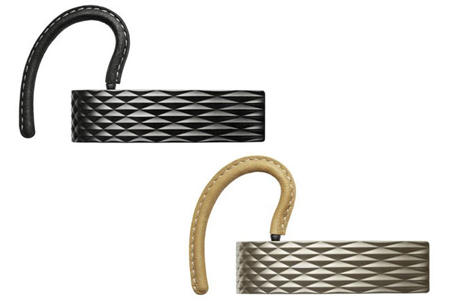
I’ve been thinking about a bluetooth headset for a long time.  Since I got my iPhone, I’ve almost exclusively used the included iPod headphones / speakerphone to talk with other people.  But it tangles often and it’s starting to get worn out – the rubber on the earpieces has rubbed off completely.  :(  That combined with the California headset law (and the joy of playing with new toys) convinced me to try to go blue.  Eric Benderoff’s review of several top bluetooth headsets gave me a little background, and the pure sex appeal of the Jawbone II gave me a starting place.

There are a lot of different possible categories from which to assess a gadget like this: form factor, simplicity of use, pairing ability, sound quality, battery life, durability, cost…  I don’t often write really analytical reviews which numerically asses and assign rankings to devices, but this time I plan to for the sake time and conveneience.  Elsewise this review will ramble, extensively.  Long.

I will rank each of the above categories with a numeric ranking between 1 and 10 (naturally) and then average out the scores.  By doing this I am essentially saying 1.) that each of the chosen categories have equal weighting, and 2.) that other possible categories (say, color) do not factor into my assessment.  Those are both true things, so take my review with the appropriate grains of sodium hydrochloride.

Form Factor: 10 (this is a sexy looking gadget, slim, black, ribbed and fancy)

Simplicity of Use: 7 (as bluetooths go, it’s pretty easy to start, pair, adjust and figure out what’s happening)

Pairing Ability: 7 (turn it on, and turn on bluetooth on your phone – they just seem to find each other)

Sound Quality: 6 (I can hear people OK.  When I need to turn the volume up high, it seems to get a little fuzzy.  People can hear me OK.  Not great, but OK.  This might be due to poor pairing, or simply the nature of the device. )

Battery Life: 6 (battery life seems to be about what you’d expect, or just a hair better.  I seem to get about 2-3 hours of active talk time.  If it sits idle on a full charge for a couple days, I can still use it.  If it sits idle after a full charge for 5 or 6 days, not so good. )

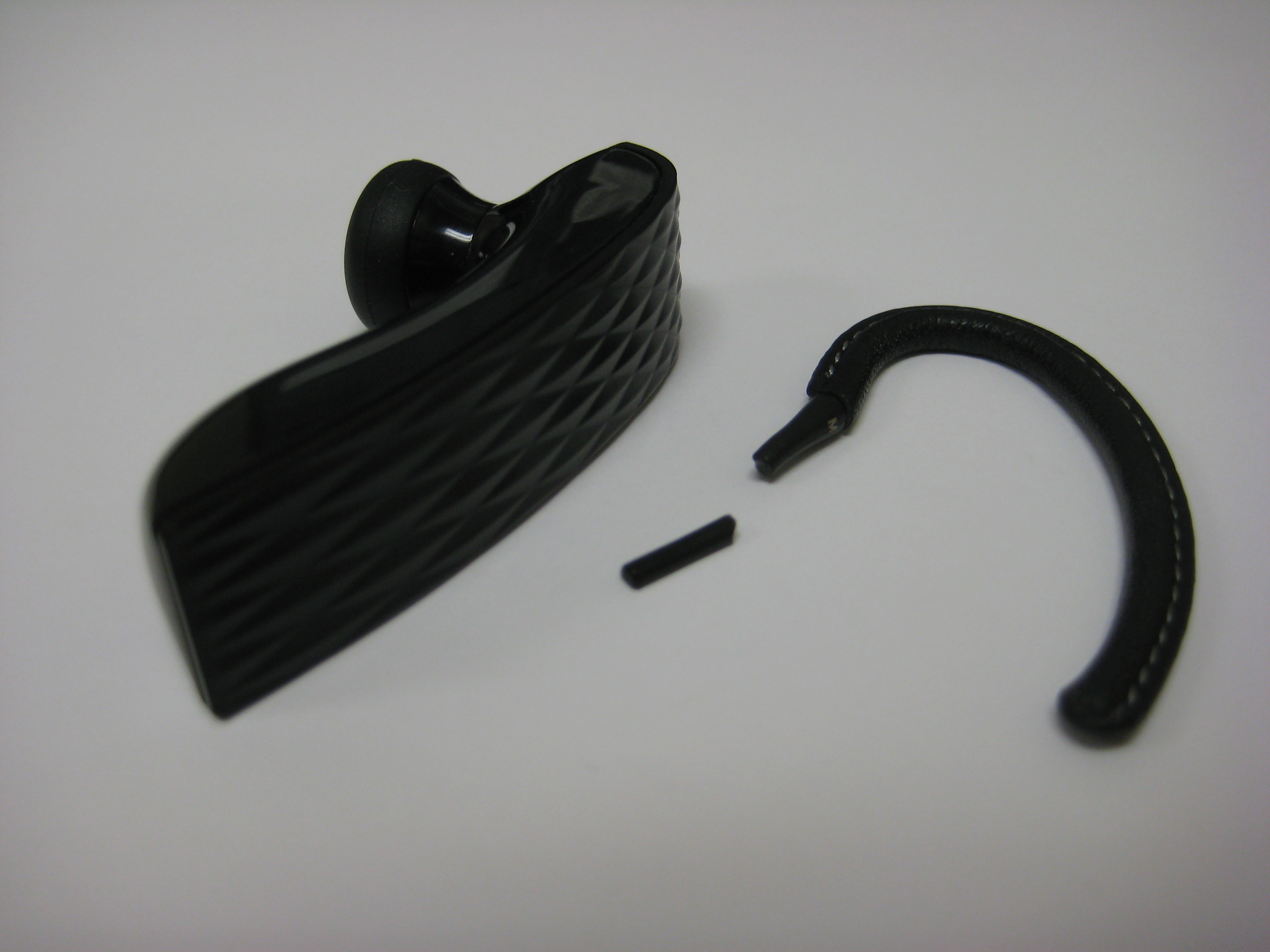
Durability: 4 (the device body seems to be fairly compact and well made, I expect it will last as well as anything else out there.  The ear pieces are another issue.  As you’ll see in the pictures below, one of my stems broke.  Jawbone is kind enough to package multiple stems [for differently sized and shaped heads / ears] so I had a backup, even though it’s a suboptimal size.  I did NOT mishandle nor manhandle the ear piece – just rotated it as it’s designed to be rotated, and the little sucker just snapped.  Boy was I irritated. )

Cost: 4 (this is a pricey little sucker.  I’ve seen it at the T-Mobile store for as little as $99, and at a Verizon store for $129.  If you shop around you’ll find it for somewhere over $100.

If we assume that each of the above categories carrie an equal weighting, then the score on the Jawbone II bluetooth headset comes out to 6.29 (10+7+7+6+6+4+4=6.2857147)

I like this device’s style and simplicity.  It’s elegant, pretty, fairly easy to use, and the it sounds good.  Not “oh my god holy crap” amazing, but it sounds good.  The cost of the unit, and the fact that the stem broke in the manner it did are both very offputting for me though, and they are the biggest limiting factors in my estimation.  That particular pair of issues (high cost with questionable durability) is expecially disagreeable.  I’ll be interested to see if/how the company responds to my customer service request.  If they do, I will update this post.

Forced to give a numeric rating between 1 and 10, this device averaged out to a 6.29.

This review is also available at 1TO10REVIEWS.

Freestyle Audio SoundWave Review: Sink or Swim?

Wednesday, December 10th, 2008

Note: this is a guest-written review from Gitamba Saila-Ngita, I felt I didn’t spend enough time using MP3 players myself (not to mention any athletic activities whatsoever) to do an adequate review of the product.

These days the iPod™ is ubiquitous, even to the extent that the term “iPod” has become synonymous with MP3 Player but, it might not be the only game in town! There are other options–especially when you want to take your music to… the extreme!

I recently had the opportunity to check out Freestyle Audio’s SoundWave. Their slogan, “Take Your Music There”, which is coupled with lifestyle images of the outdoors, and instantly got me wondering whether this little 2″x3″ device could withstand the wear and tear of mother nature. The SoundWave comes with everything you need to get started right out of the box; such as waterproof headphones, a replacement belt clip, USB™ transfer cable, arm band, and my personal favorite, 50 free music downloads from the eMusic service (Apple please take note).

The device also comes with a slew of pre-installed tunes which allows you to take it for a spin as soon as you’re ready. It can hold 2GB of music via internal storage (no SD slots to expand it), and packs a substantial 18 hour playback time.

Getting started was fairly quick and rather painless.  After I set up my eMusic account, I uploaded some music onto the device before taking it out for a swim. One major difference between SoundWave and the iPod is that the SoundWave has no official software interface to your computer. This may not be a “make or break” deal for all MP3 Player users, but whether it be iTunes or Windows Media Player, it is definitely a convenience to have something that plays well with not only your music but your gadgets too.

Now before I go further, I’m always rather skeptical of any waterproofed electronic, ESPECIALLY something like an MP3 player.  Usually the “waterproofing” is inadequate, or you sacrifice size to put your device into something as massive as an Otterbox. In some cases you could be like our friend David Spieser who had his iPod™ Shuffle “Waterproofed” for a pretty penny.

Once in the water, things got kind of dicey. The SoundWave features six buttons, each with multiple functions that are displayed on simple and very tiny digital screen. I found the buttons very difficult to press. This may be partly due to the waterproofing, but it definitely made skipping through songs mid-swim a challenge. There is also a 5 second fade out when you skip, so trying to get to that next song to pump up your work out gets really annoying very quickly. I recommend setting up a play list, or enabling the shuffle function to make your work out as fluid as possible (On a side note, for some reason even with correct IDV3 tag encoding all my songs, no matter where I put them, displayed as gibberish – I am still trying to figure out why that happened). I swam for about an hour and also submerged the device up to its maximum depth of 10 feet.

To my surprise, the device showed absolutely no signs of taking on water. The waterproof earphones held up great too, although I wish they were slightly more comfortable (it uses a standard headphone jack so I imagine you could find something waterproof that suits you). The sound quality both under water and above is not bad. The little guy also supports the WOW audio codec and multiple types of EQ to help tailor the experience to your liking.

All around, the Free Style Audio’s SoundWave can take the beating you dish out while getting your sweat(or swim!) on. I recommend this to people who’ve been looking to bring a tough and rugged portable music player with them on active outings, where you won’t need to worry if it can take on a variety of physical and active elements.

A Waterproof iPod Shuffle in Review

Monday, December 8th, 2008

A while back, when I first saw Steve Jobs announce the new version of the iPod shuffle, with integrated clip and super-small form factor, I was excited.  I exercise a lot, mostly running, biking and swimming.  Music (or “books on tape”) makes the whole experience a lot more tolerable, and the iPod shuffle with its light weight and built-in clip is a perfect companion.

For running and biking, the shuffle is brilliant, and I use it every day.  Every day.  However, I’ve been swimming a lot more lately, and most electronics don’t do well in water, chlorinated or otherwise.  And I’ll tell you something else.  Swimming laps is boring.  Really boring.  I find it slow, tedious, dull, and insipid.  I like the feeling of endorphin release, and the positive benefits of the exercise, but man swimming laps is uninspiring.

Enter Swimman:

Swimman.com is a service that will waterproof the iPod shuffle.  You can buy the iPod through them, or purchase it directly and send it to them.  The waterproofing treatment takes about one week, and then you’re ready to go.  They also sell waterproof headphones (which I bought) to use while swimming.

Here are the basics:

  • They waterproof the shuffle
  • The On/Off slider and the Shuffle/Continuous play slider are both locked in place
  • The buttons become much stiffer

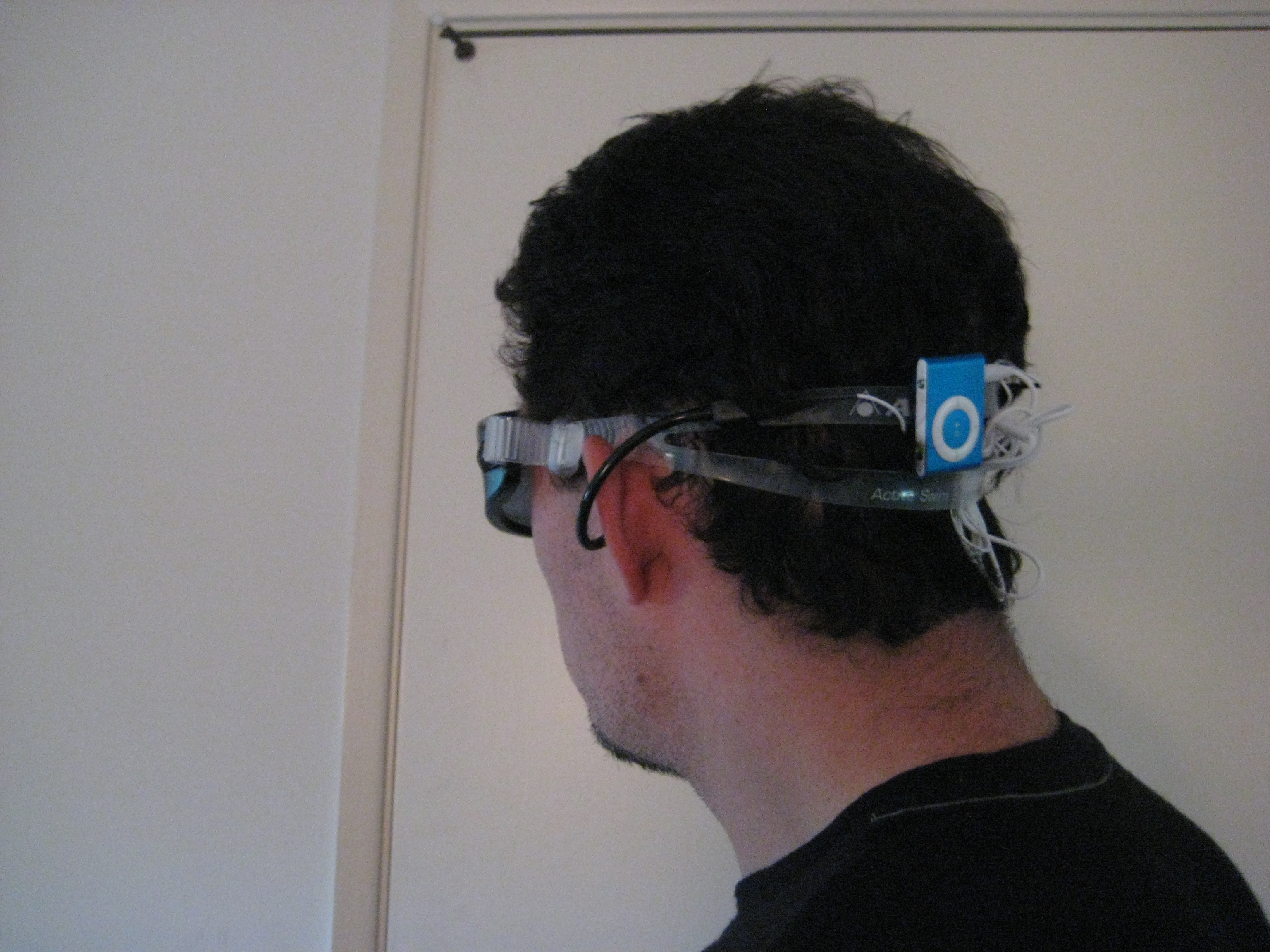
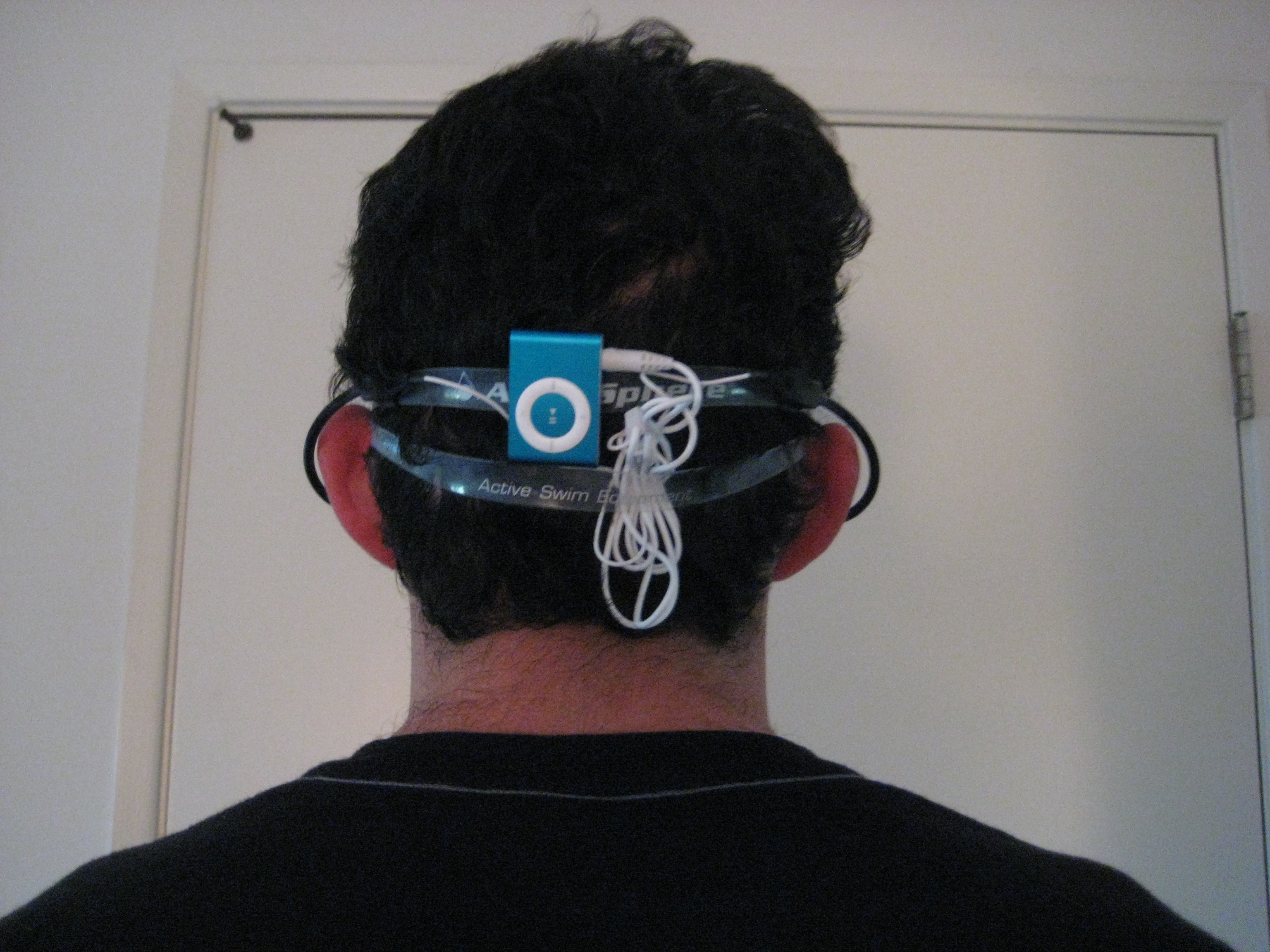
Otherwise it works the same as before.  If you want to shuffle your music you can set your playlist in iTunes to shuffle.  Once you get your device, you’ll want to clip your headphones and the shuffle to the headband, strap the excess cord under the headband, and then you’re ready to swim.

Swimman offers a number of packages to choose from, including just the shuffle itself, the headphones and the shuffle as a combo package, etc.  I went with package E, along with a pair of swimman headphones.  The waterproofing treatment is $100 plus $15 for shipping and handling.  The headphones are another $100.  And the 2GB shuffle is about $70.  So all told I’m down almost $300 for the luxury of waterproof tunes while lap swimming.

I’ve now used the waterproofed shuffle a total of 8 times.  I am stoked.  I switch back and forth between music and books on tape (nothing gets you pumped up like Joe Mantegna reading the Godfather.)  But I find that I can now swim longer and with less impatience.  Here are some pics of the shuffle in situ – (it looks just like any other):

On the whole I think this is awesome.  It ain’t cheap, so if you’re short of cash you might need to look at cheaper options.  But all of those options are considerably bulkier, heavier, and/or less convenient than the Swimman waterproofing treatment for the shuffle.

If I were forced to give the Swimman waterproofing system a numeric rating between 1 and 10, I’d give it an 8.  It would probably be a 9 or 10 if the price wasn’t so dang high.

This post is also available on 1TO10REVIEWS.

Some other related posts:

Engadget

Blackberry’s Imperfect Storm

Monday, December 1st, 2008

I had some time to play with the BlackBerry Storm last week, and I’m surprised how much I disliked it.  I feel it was a complete misstep on the part of RIM, and is indicative of the problems of handset manufacturers short-sighted thinking as they compete with the iPhone.

Competing with the iPhone is like competing with CSI
CSI is one of the top broadcast TV shows every week.  Millions of people tune in to watch a fairly vapid crime drama show with cool lighting effects and gruesome murder scenes. Many millions of people.  So if you are a clever TV exec, and you want to compete in the same timeslot, do you (a) create an equally vapid crime drama show with more cool lighting and gruesomer murders, (b) create a completely different show, such as a romance, comedy, reality, hospital, etc, or (c) offer alternating reruns of Matlock and Baywatch? As tempting as (c) might be, the answer is (b) – they call it cross- or counter-programming.

The World’s First Touchscreen Blackberry?
This is the main marketing campaign around the product (don’t ask me why).  The commercials (much like the gPhone commercials) are blatant ripoffs of the iPhone commercials, and they shouldn’t be.  This is the core problem of the whole device – it’s not an iPhone, and more to the point it shouldn’t be an iPhone.  Instead of building a great next-gen BlackBerry (like they did with the Curve, Pearl, Bold), they made a less functional product by trying to duplicate the core strengths of another product.  In other words, they are airing CSI: Indianapolis when they should be showing Reality Stars Paintball on Ice.

All CrackBerries need a keyboard
The BlackBerry is beloved because… it integrates perfectly into Exchange/Outlook/Corporate email environments and it is a phenomenal mobile email device.  IT administrators love it as do the end-user who can easily write emails while attending meetings, at family events, on the tarmac, dinner parties, and even while driving. The product experience is heavily tied into the keyboard, one could even consider it the signature piece of the device.  A BlackBerry without a keyboard can’t possibly (and, to the point, doesn’t) replicate the same “BlackBerry Experience”.

The Missed Opportunity
The “correct” touchscreen BlackBerry would have a physical keyboard as well.  Seems like an obvious, yet somehow missed move by the company.  Touchscreen keyboards can’t replace the physical one, and just dabbling touch-UI features onto the rest of the BlackBerry experience makes for a wholly unsatisfactory device.  Instead, the company should’ve kept the form factor of the present-day device, but made the screen touch-enabled.  Best of both worlds, satisfies the email-craving workaholic as well as the fun-having gadget owner.

Instead, the BlackBerry Storm might just be the mullet of phones.  It’s probably the best “other” touchscreen phone on the market (so far), but that’s just not good enough.  There are plenty of ways to compete with the iPhone, and I’m dissappointed at the lack of originality and creative thinking displayed by other cell phone manufacturers.  Something tells me the best competition will come out of left field, the way Asus first innovated with their eeePC.  I hope the clever product people at RIM who’s ideas got shot down to make the Storm can bring out the concepts they really wanted to ship (and I’m just going out on a limb with that – despite being Canadian I have no special insight into their product roadmap).

The Microsoft Wireless Laser Desktop 6000 – a review

Sunday, October 19th, 2008

Back to basics for me on LD.  This one is just a straight-up, old fashioned gadget review.

This wireless laser Desktop 6000 v 3.0 mouse and keyboard have some pretty cool features, though the keyboard suffers from some serious performance drawbacks.  I’ll start with the mouse, and then my impressions, and then the keyboard, and my further impressions.

The mouse is well shaped, comfortable, and has some nifty features.  The front thumb button lets you magnify a small section of the screen, and the rear button lets you move back a page.  In the settings area you can re-designate some different functions for those buttons.  The USB wireless “dongle” fits into the bottom of the mouse; this dongle connects both thhe mouse and thhe keyboard.

The mouse has worked great so far.  the plastic and rubber surfacing is comfortable and pleasantly tactile.  The magnify feature is OK, but the back button is awesome.  When I use my portable mouse I reach for it, and I’m  bummed that it’s not there.   This is not an incredible innovation – features like this have been around a long time.  But efficiency is a funny thing: once you get used to a simpler / faster / more efficient mechanism, it’s hard to give it up.  Overall, I am very happy with the mouse.

The keyboard has similar whiz-bang features and a wrist-friendly layout.  I’m used to using my old-school Dell keyboard, complete with coffee stains and non-ergonomic design.  This new black and smoke gray model, with it’s ergonomic curvatures, enlarged “critical keys” and rubberized hand rests seems like a huge step up.  There are some hot keys as well with useful shortcuts and lots of customization options.  My favorite key is actually the “documents key;” you can use it to open a specific folder (like “My Documents.”  :)   Again, efficiency is a pleasant thing, and easy to get used to.

Here’s the issue: performance has been spotty.  When I first plugged in the dongle and tried to type I saw significant lag.  For a minute or two the keystrokes would be fine, then all of a sudden no type appeared.  Then ten seconds later, it all appeared in a rush. I try to delete or backup knowing that I mis-typed something, but no type is appearing (or disappearing.)  Then I have to just stop and wait for things to realign.   Sometimes it would type fine for a minute, and then lag for eight or ten characters, and then catch up again.  Also, sometimes the keyboard seems to lose itself.  By this I mean that though I haven’t moved the cursor or moused into a new application, suddenly the keyboard seems to stop typing, and I am forced to click on something else, and then click back into the “typing zone.”  Not OK.

I tried moving the dongle to a couple of different USB ports, tried the “reset / reconnect” button, and also tried installing the software that came with the setup (I like to check for plug-and-play compatibility before installing software).   After doing all of that, the performance improved significantly.  Having shut down and re-booted a half dozen times while running these peripherals seems to have helped as well.   At this point performance is largely acceptable, though not quite equivalent to my old PS/2 connected keyboard.  However the ergonomics, hotkeys,  and overall shiny-newness makes up for a lot.  As long as they type-pace keeps up with the speed of the keystrokes, I think I will stick with it.  But I’m not throwing out my old keyboard just yet.

This rig costs $99 retail – you can purchase it from Microsoft directly, or from any number of alternative online and traditional retailers.  Overall I think it’s a pretty good rig.  If I were forced to give it a numeric score from one to ten, I’d give it a 6.   If performance were as solid as my old wired keyboard, I’d give it a 9.  There’s another great review of this item over at IStartedSomething with some beautiful pictures if you want some more info on this setup.

This review is also posted at 1TO10REVIEWS.

Review: TuneUp Finds Missing Music Meta Data

Monday, September 15th, 2008

In brief: TuneUp (500 song cleanups for free, $12/yr subscription, $20 lifetime license) makes it easy to find missing metadata for songs and missing album art.

I bet your music collection is a lot like mine used to be: a hodgepodge of mp3s, m4as, and other types of audio files that you’ve acquired over the years and ripped using various shareware products of dubious quality, resulting in hundreds or thousands of tracks that are misspelled, missing album names, and are generally a mess:

A small snippet of my pre-TuneUp Library

Sad Snippets of my pre-TuneUp music collection are coupled with…

Album covers small

… an even sadder dearth of album covers.

Sorting your library in iTunes yields a list of songs named “Track 01 – Insert Song Name Here” or “Kanye West Christmas Album 02: Jingle #(@*#ing Bells.” You’re missing album art, your genres are a mess. And, since doing a file-by-file fix would take hour upon frustrating hour, there’s no prospect of things getting better any time soon.

But don’t lose hope, because TuneUp (Windows only, Mac version coming this fall) is here to help. Launched earlier this year by the TuneUp Media, TuneUp offers a dead-simple way to scan audio files and correct missing or corrupt meta data, including album cover art. Its back-end is powered by Gracenote’s music fingerprinting service, which boasts a database of 80 million different tracks and 6 million albums.

Cleaning up your wayward tunes is easy – drag incomplete tracks to TuneUp’s interface, and the program returns results in a few seconds. Click to approve the suggested changes to update the file information, or reject suggestions or undo changes if you see a mistake.

In addition to scrubbing features, TuneUp offers a “Now Playing” companion that suggests YouTube videos, merchandise, and concert schedules for the song that you’re scrubbing or playing.

So what’s good?

  • It works: I threw nearly 400 songs at TuneUp, and it found the correct track name, album, artist and genere for all but 2 – a godawful techno remix of Boys of Summer (like you don’t love DJ Sammy), and an instrumental version of the New York Mets theme song (my favorite ringtone). That’s 99.5%, for you stats geeks. TuneUp claims a standard 85% – 90% success rate, with most misses coming from remixes, unreleased live concert tracks, and the most obscure of obscure songs.
  • It’s easy: Drag, drop, click. Done.
  • If you don’t have a ton of music to fix, it’s free: TuneUp offers a free trial version that will clean up to 500 tracks.
  • “Added value” is actually added value: The “Now Playing” section offers a fairly comprehensive list of videos, concert schedules, related music, and more. The merchandise and ticket auction sections feel like you’re having a bunch of referral links pushed at you, but they’re easily ignored.

What’s not as good?

  • Clear the schedule: While TuneUp identified tracks quickly (2ish seconds apiece in my run), writing the metadata and album art was not. My 400 songs took nearly 15 minutes to find, 40 minutes to write.
  • It’s not that I don’t love you, it’s just that sometimes I need some me time: Like a needy, whiney, insecure significant other, TuneUp won’t let you start iTunes without TuneUp tagging along. There is no feature in the preferences to disable this, and a forum posting on the topic doesn’t contain any reassurance that it will be coming anytime soon. Without uninstalling the program, I couldn’t find any obvious way to prevent TuneUp from loading.

As for my results? Take a look:

Fixed covers

If you’ve got an eyesore of a music library that seems to taunt you every time you try and find a mislabeled track, you would be well-served by shelling out an Andrew Jackson to give TuneUp a try. It does what it says it will do, and does it well. As long as you’ve got a couple of hours to kill and don’t mind an application that loads every time you run iTunes, you will be rewarded with a music library that is so pristine that it looks like you actually paid for every single one of your tracks.

Update: The San Francisco Chronicle also provides a write-up of TuneUp, and contains a brief discussion of the Picard Project, which offers a free alternative to TuneUp. I haven’t tried Picard.

Editor (JT)’s Note: While I have both a personal and professional relationship with the TuneUp team, I did no edits whatsoever to this review, nor provide any direction or insight into the content, tone, etc.  My only involvement was to provide an introduction between Dan Rubin (article author) and the individual providing reviewer support at TuneUp.